Modify data on NID
| Command: | Modify data on NID |
| Menu path: | Users > Modify data on NID |
| Icon: | 
 |
| Functional description: | The command allows the user to modify the data on the NID, both on aerial and buried type NID |
Command Users > Modify data on NID (aerial line)
opens Modify data on NID window.
In that window, you can enter and modify data on the NID.
Procedure
From the main menu run Users > Modify
data on NID (aerial line)
command. The command is now activated.
The cursor is displayed as a small rectangle with the text
next to it asking you to select the NID (Figures 1 and 2).
Figure 1 - (NID aerial line) |
Figure 2 - NID (buried line) |
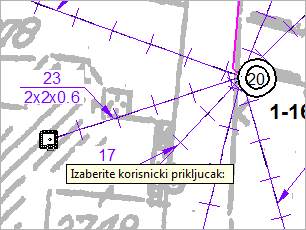
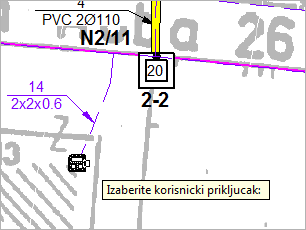
Select the NID by clicking on the NID symbol or label (both for aerial
and buried type NID).
After right-clicking, Modify data on NID window
opens.
Window: Modify data on NID
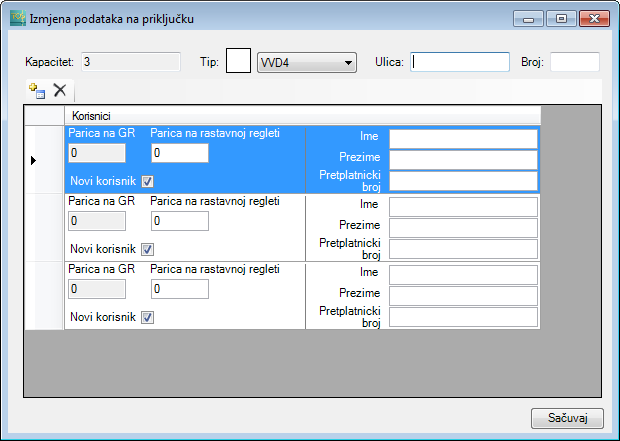
Figure 3
Modify data on NID window contains the following data in its upper left part:
- Capacity
Capacity is an info box that can not be changed. If you want to change the NID capacity,
do it by adding/deleting users, whereby the capacity is updated automatically or via
Properties window, by changing the values in the “Capacity” field. - Type
Type of NID is shown with an appropriate symbol ( for aerial and
  for
buried line),
for
buried line),
and a drop-down list beside, from which you can choose the aerial or buried NID type. - Street and Number
Street and number in which the NID is located.
In the lower part the window contains:
- toolbar and
- the list of users.
Toolbar
Toolbar contains the following tools:
- Add User (
 )
)
Clicking on the icon add a new user to the NID. - Remove user (
 )
)
Click on the icon to delete the selected (highlighted) user from the list.
User List
User List contains information on users who are on the observed NID.
Data are as follows:
- Twisted pair on MDF
Position of the user on the main distribution frame.
This field cannot be changed manually but indirectly, by changing the position on the disconnection module.
- Twisted pair on the disconnection module
Position of the subscriber on the DT disconnection module
The user enters/changes the number of twisted pair after which it’s necessary to run the command Auto numbering > of NIDs.
After that, “Twisted pair on MDF" field is automatically updated in accordance with the new position of the subscriber on the disconnection module.
- New user - (by ticking the box define whether it is a new or an existing user.)
- Name - (User Name)
- Surname - (User surname)
- User number - (User telephone number)