Object in N Points
| Command: | Object in N Points |
| Menu path: | Buildings > Object in N Points |
| Icon: | 
 |
| Functional description: | Construct a building of irregular shape. |
Object in N Points command enables you to a draw building of irregular
shape.
Procedure
From the main menu run Buildings > Object in
N Points
command. The command is now active.
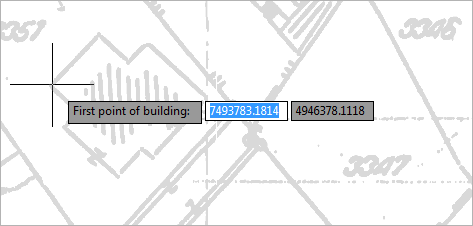
The cursor is displayed in
a form of a „+” (plus) sign |
Figure 1 |
Specify the first point by
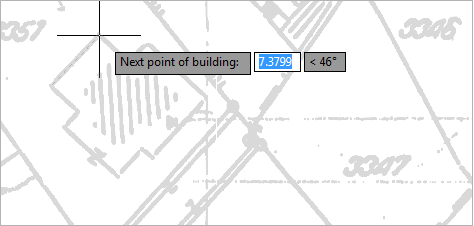
left-clicking, and then drag the mouse cursor to the next point. |
Figure 2 |
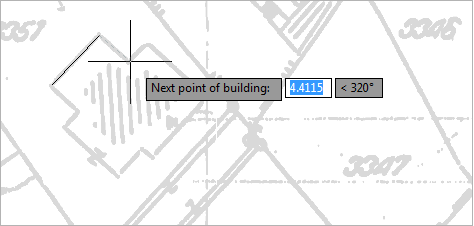
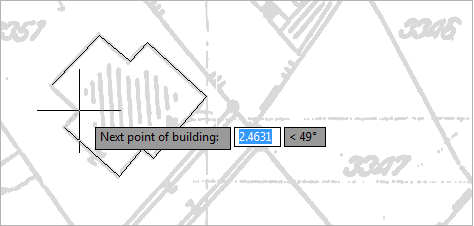
By clicking on the second point, a full temporary line is displayed. Move the cursor freely in the desired direction in order to define the third point. While doing so, a dotted line is displayed connecting the end of the full line and the current mouse position (Figure 3). |
Figure 3 |
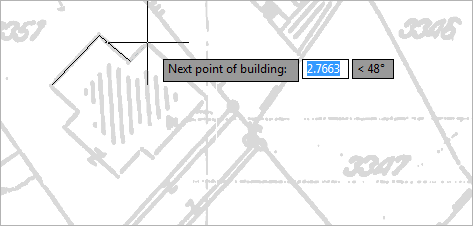
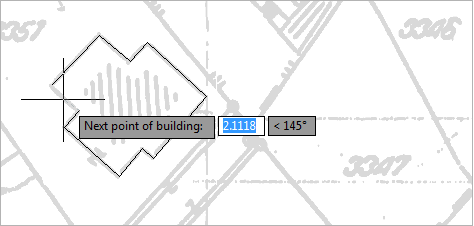
By left-clicking, continue defining the points of the building basis. ... 4th point... |
Figure 4 |
... 5th point... ... 6th point... ... 7th point... ... 8th point... ... 9th point... ... 10th point... |
Figure 10 |
...and finally, by right-clicking (or pressing the ENTER key) close the polyline that represents the building basis. |
Figure 11 |
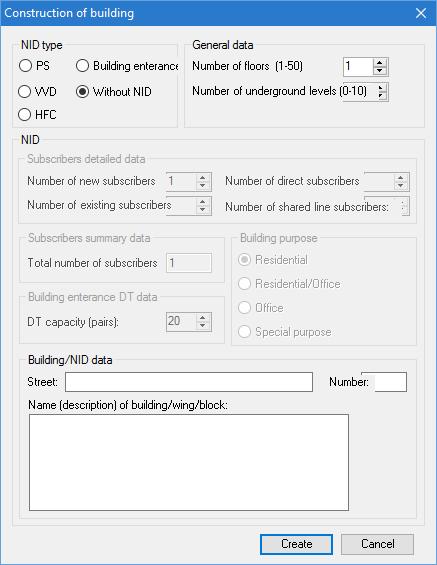
After closing the polyline
Construction of Building window opens
(Figure 12). The window is used to enter |
Figure 12 |
After filling in the data in
the Construction of Building
window, by clicking on Create button,
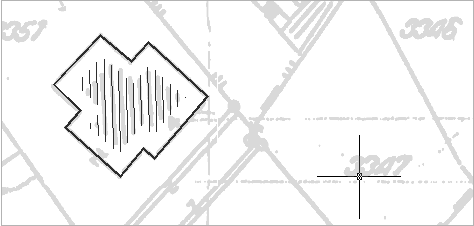
generate the |
Figure 13 |