Insert Header
| Command: | Insert Header |
| Menu path: | Layouts > Insert Header |
| Icon: | 
 |
| Functional description: | The command inserts new header into the selected layout or replaces existing header (or data table). |
Insert Header command inserts a header into
the selected layout.
If there’s already a header or data table in the layout, they will be replaced
by the new header.
To add the header, the layout needs to have a page frame.
You can add:
- header with the scale (tip: edit the header appearance with Header with the Scale command)
- header with the date (tip: edit the header appearance with Header with the Date command)
- header without the scale and date (tip: edit the header appearance with Layout Header command)
Procedure
Before running the command you need to open the layout in which you wish to add (or change) the header.
Then, from the main menu run Layouts > Layout Header command.
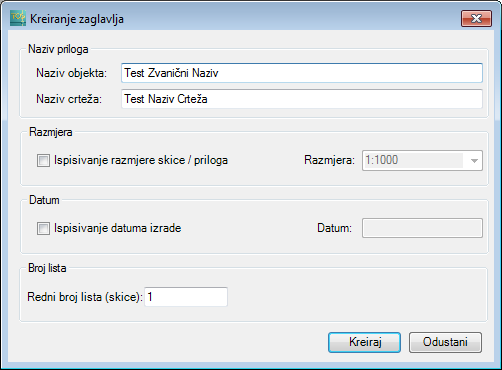
If the header is added to the layout which has no header nor data table, Create Header window opens (Figure 1). If the header is added to the layout which already has a header (or data table) then Change Header Data window opens.
Both windows contain same entry fields (therefore the procedure is the same), the difference being that Create Header window is initially filled with data as described in „Forward layout entry data” section on this page, and Edit Header Data window is initially filled with data from the header (or data table) already in the layout.
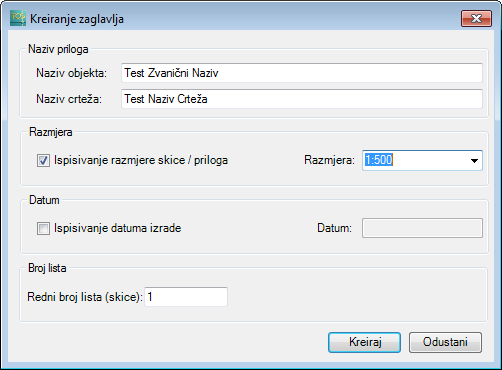
Figure 1
The window contains the following items:
Name:
- Object Name - (User accepts the offered input or enters the construction object name)
- Drawing Name - (User enters the drawing
name)
Scale
If Display Layout
Scale checkbox is checked, the scale will be displayed in the header.
The user selects the scale from the Scale
drop-down list.
If you plan to create a viewport of the layout later on, than you MUST
define the scale.
Date
If Display
Creation Date checkbox is checked,
the date will be displayed in the layout header.
The user enters the date in the Date field.
Sheet Number
The user enters the sheet’s number that will appear in the layout header.
* * *
Depending on whether there’s already a header (or data table) in the
layout,
Create button or Modify
button will be displayed in the bottom of the window.
Click on Create (Modify)
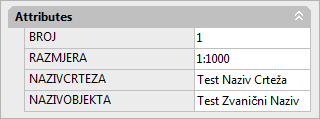
to create a new header (Figure 2),
in accordance with the data entered in Create
Header window (or Edit Header Data
window).
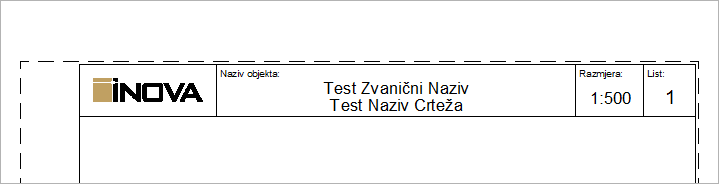
Figure 2
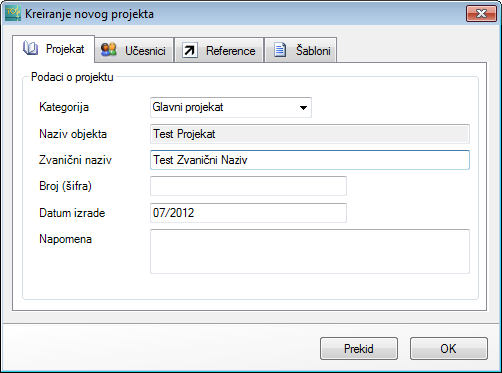
Forwarding header data
The header data can be entered at different levels:
- At the project level
- Immediately prior to the creation of the header
- Directly into the header itself
Unlike the data table, no header data are defined at the level of system
settings,
so in this case the highest level at which data can be entered is the project
level.
Regardless of the data entering level, they are forwarded to the next
level
and at that point the user decides whether to accept the forwarded data
or manually change them.
If you change the data, then the changed data will be forwarded to the
next level
until the header itself is eventually completed.
(The data used in the example are arbitrary and the only goal is to show how they are forwarded from one level to another.)