Selection of FO Paths
| Command: | Additional Tools (FO Paths) |
| Command location: | DB Optic View window |
| Icon: |  |
| Functional description: | Opens the list of FO paths used for searching and viewing FO paths on the map (GIS Database) and loading FO paths into the schematic display and further into the drawing. |
Additional Tools ( ) command
opens the side window in the DB Optic
view window map.
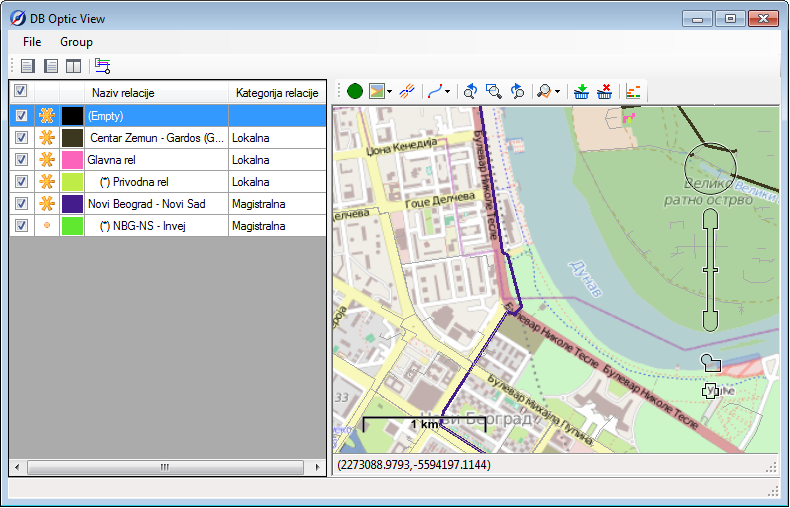
This side window contains the list of FO paths currently visible in
the map’s workspace or in any way connected to it through visible FO paths.
It is used primarily for:
- searching and viewing FO paths
- loading FO paths into the scheme (and further into the drawing).
| Note: |
Creating FO paths and assigning cables to FO paths is described on FO Paths page. |
Side Window: “FO Paths”
Additional Tools (
) command opens the side window in the DB
Optic view window map.
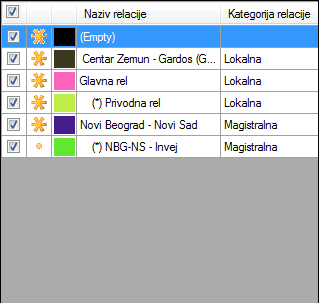
In the side window there’s a list displaying:
- all FO paths whose cables are currently (at least partially) visible on the map’s workspace, and
- all FO paths superior to the above mentioned FO paths (even if none of their cables are currently visible on the map)
In the list, FO paths are displayed hierarchically.
This means that, if an FO path is found and displayed, then the list above
it contains the FO path to which it is an access branch, then its superior
FO path and so on up to the main FO path.
Each item on the list has:
- Checkbox
Using the checkbox, the user can manually turn a certain FO path display on or off. - Presence indicator
This indicator displays whether the FO path is currently in the map’s visible field or outside of it. - FO path is
within the map’s visible field
- FO path is
within the map’s visible field - FO path is
outside the map’s visible field
- FO path is
outside the map’s visible field
- FO Path Name
(assigned when defining FO path);
(Empty) = cables don’t belong to any FO path (they’re grey on the map even if you change their color on the list) - FO Path Category
(assigned when defining FO path)
Context Menu
Right-click on any item in the list (i.e. FO path) to open the context menu from which you can run one of the following commands:
- Change FO Path
Color
Changes the color of FO path display. - Select FO Path
Selects all FO path cables on the map (if nothing happens, check whether the FO path is within the map’s visible field) - Add FO Path to
Scheme
Loads the FO path into the schematic display and generates the FO path scheme - Add FO Path with
all Access Branches to Scheme
Loads the FO path and all its subordinate access branches into the schematic display and generates a scheme encompassing all of them