Defining fiber circuit name
Fiber circuit name can be defined in two ways:
- in Fiber Splicing [Equipement] window (as described on this page) and
- in Fiber Scheme (as described on: Fiber scheme > Fiber Circuit Name page)
Assign Fiber Circuit Name
(in: Fiber splicing [Equipement] window)
Fiber circuit name assignment is done in Fiber Splicing [Equipement] window (Figure 1) (see Fiber Splicing [Equipement]).
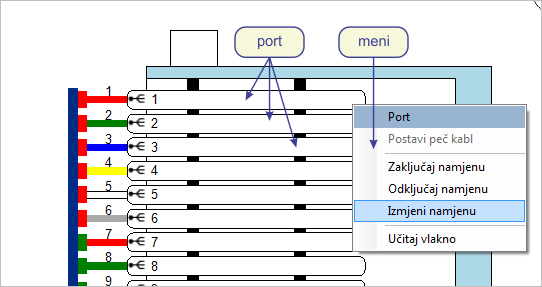
Figure 1
Right-clicking on the port opens the context menu (Figure 1).
By selecting Change Circuit Name command Select Fiber Circuit Name window opens (Figure
2).
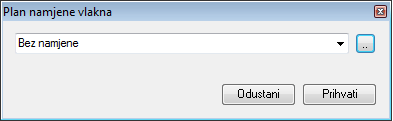
Figure 2
Window: Fiber circuit name
The window contains the drop-down list from where one of previously
defined circuit names is selected (circuit names are located in the code
book).
The procedure is as follows:
Firstly, type the part of circuit name which is already in the code
book into the drop-down list field.
As the text is entered, the drop-down list is automatically filled with
all the circuit names containing the entered text (Figure 3).
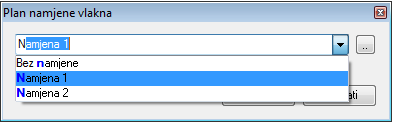
Figure 3
Left-click to select the desired circuit name.
The circuit name is written in the text field (Figure 4).
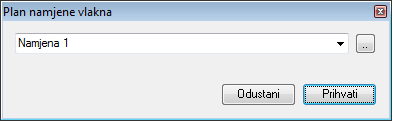
Figure 4
Once the circuit name has been selected, click Accept and the
selected circuit name will be assigned/changed on the port
(but not on all the fiber elements as well, for the circuit name should
be propagated along the fiber).
| Note: |
Multiple ports can be selected at once and assigned the
same circuit name. |
If there
is no desired circuit name in the Code Book,
it can be created by clicking the button ( ) and opening
Code Book (Figure 5).
) and opening
Code Book (Figure 5).
Code Book: Fiber circuit name
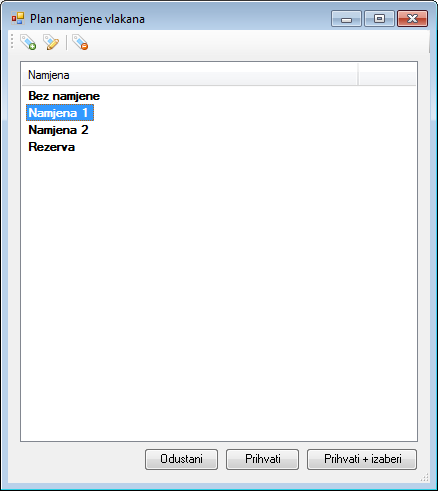
Figure 5
The Code Book has:
- Its own toolbar
- The list of existing circuit names
- Buttons
Toolbar
The toolbar contains the following tools:
 - Add
New Circuit Name
- Add
New Circuit Name
Adds new circuit name by clicking on the icon. The circuit name should then be named. - Change
Changes the name of circuit name previously selected in the list. - Remove
Newly Added Circuit Name
- Remove
Newly Added Circuit Name
Removes the circuit name from the list. It is possible to remove only new circuit names created by the user. The circuit names loaded from GIS database cannot be removed.
Circuit name list
It contains all the circuit names obtained from the fibers in the site plan drawing.
Buttons
There are three buttons at the bottom of the code book:
- Quit
Quits the changes made in the code book - Save
Saves the changes made in the code book - Accept + Select
Accepts the changes and uses selected circuit name
* * *
After creating
a new circuit name in the code book,
return to Select Fiber Circuit Name by clicking
Accept + Select (Figure 6).
Figure 6
The new
circuit name is selected in the drop-down list.
By clicking Accept return to Fiber
Splicing [equipment] window (Figure 7).
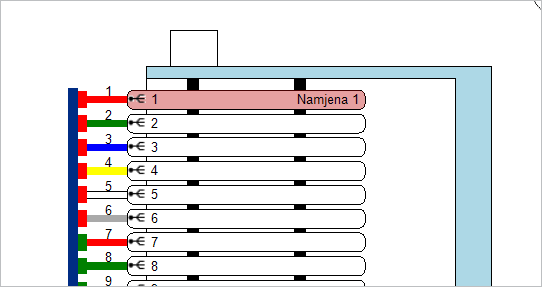
Figure 7
The window
shows the circuit name added on the port (connector).
The circuit name is automatically locked, i.e. prepared for propagating
(which is the next step), as can be seen by observing the port color (gray,
or dark pink if the port is also selected).
At this point the circuit name is still not propagated along all the fiber
elements.
Circuit name propagating
Circuit name propagating is a procedure of circuit name forwarding through all the fiber elements (cables, splice points, distribution frames).
| Clarification: |
The circuit name is forwarded through the fiber in the same
manner as the light signal spreads through it. |
After
the circuit names have been locked (prepared), it is sufficient to click
Accept (lower right corner of the window).
This will bring about the acceptance of all changes made in Fiber
Splicing [Equipement]
and at the same time the circuit names will be propagated along the entire
fiber.
(If you wish to quit propagating a circuit name, right-click on the port
with the circuit name by running Unlock Circuit
Name command, after which the circuit name will be removed.)
Propagated circuit name will be written in all the elements comprising the fiber circuit (cables, splice points, distribution frames...).
After clicking Accept, the program displays the message thet reeds "Fiber circuit name successfully propagated along fiber circuit" (Figure 8).
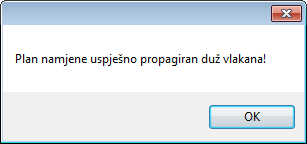
Figure 8
Click on OK to close the message window.