Window: TCG Block Manager
TCG Block Manager window can be opened by:
- Running Export to block
(
 ) command
(at the moment of creating a new block (the block content is primarily, but not exclusively, intended for printing). - Running Insert Block command
(at the moment when you want to use the previously created block)
Window: TCG Block Manager
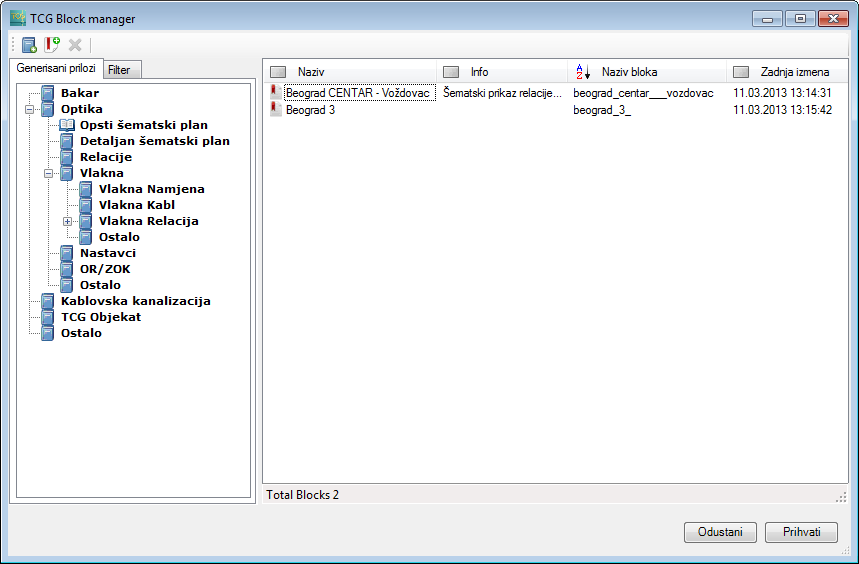
Figure 1
The window contains the following items:
- toolbar
- tabs
- list
Toolbar


Toolbar contains the following tools:
 - New
folder
- New
folder
Creates a new folder. New folder will be created within the selected folder ( ).
). - New
block
- New
block
Creates a new block.
Block content will be everything that was on the window workspace at the moment of running the Export to block () command - Delete
Deletes the selected element (folder ( ) or block
(
) or block
( )).
)).
Tabs

There are two tabs:
- TCG blocks
- Filter
Tab: TCG blocks
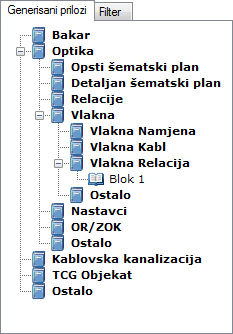
This tab displays the pre-prepared
folders in which the blocks are placed. Folders are pre-prepared in order to make the work easier for
the user, but the user can also custom-create their own folder
structure.
|
Figure 5 |
Tab: Filter
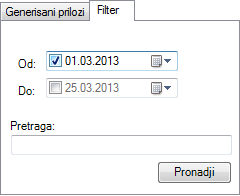
Filter tab is used to quickly
locate previously created blocks. If you don’t enter anything in the “Name” field and click Find, you will get the list containing all blocks. In addition, you can filter created blocks chronologically. By choosing the date you define the time period. If the blocks are created within that time period, they will be displayed in the list after clicking the Find button.
|
Figure 6 |
List

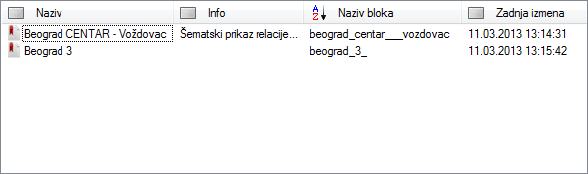
The list displays all folder elements selected in TCG blocks” tab
(they can be: sub-directories and/or blocks) or
list of blocks obtained by searching the “Filter” tab.
The list is divided into 4 columns: The items on the list can be ordered
according to the column criteria (by clicking on icons:  ,
, ,
, ).
).
Items can be ordered by:
- name
- info field
- block name
- time of latest change